Built-in demo
The app ships an HTML/JavaScript demo. With the app running, open it from the main window (Open demo) or go to:
http://127.0.0.1:8767/demo/v2/
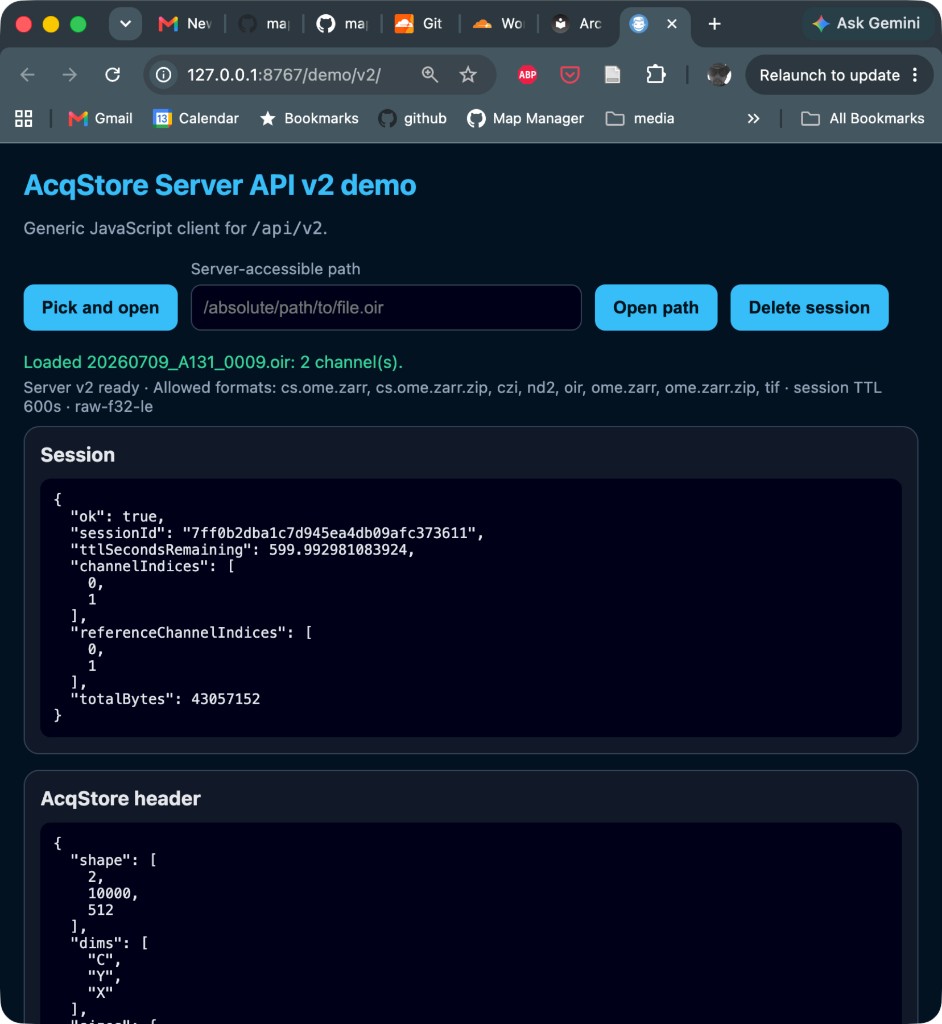
The demo lets you open a file and view source and optional reference images. Tools for contrast, composite color, axes, and navigation help you explore what was opened.
Open a file
- Click Open File (native file dialog on the machine running the app).
- Wait for the status line next to the button (for example
Loaded …: 2 channel(s).). - The page shows Source channels on top and Reference channels below when a reference attachment exists. Each pane includes contrast controls for its channels.
- Opening another file replaces the previous demo session and loads the new one.
Supported file types come from AcqStore at runtime. Prefer GET /api/v2/capabilities over hard-coding extensions (typical examples include .tif, .oir, .czi, .nd2, and OME-Zarr variants). The demo UI does not list formats; use capabilities (or the OpenAPI docs) when you need the allowed list.
Contrast
Inside each pane (Source channels and Reference channels), a contrast card lists one row per channel:
| Control | Purpose |
|---|---|
| Channel label | Zero-based name (Channel 0, Channel 1, …) |
| LUT dropdown | False-color map for that channel (also used when Composite is on) |
| Range… | Opens a popover with a log-scaled histogram, min/max fields, and Auto |
Contrast is display-only. Changing LUT or range does not change the underlying image data or HTTP responses.
Image layout
- Source channels and Reference channels appear in separate panes.
- When a reference image is present, drag the horizontal divider between the panes to resize them; either pane can collapse to zero height (heading and images clip). Image canvases use
min-height: 0so the flex layout can shrink fully. The combined source/reference viewport is sized tomin(85vh, 960px)so images get most of the window; scroll for the JSON sections below. - Unequal-aspect planes (typical kymographs) initially stretch to fill the view width and height. Square planes keep an aspect-preserving fit.
- On the reference pane, Show scan path (on by default when a path exists) draws the scan-path overlay.
- Axes (per pane) draws adaptive major/minor ticks in physical units from
plane.axes(not pixel indices). After the display transpose, X runs left→right from 0 and Y is plot-style: 0 at the bottom, max at the top.
Composite
When a pane has two channels, a Composite checkbox appears in that pane’s heading (one control for source, one for reference):
- Off (default): one image per channel. Color LUT applies.
- On: that pane shows a single RGB image built like a fluorescence overlay:
- Each channel is normalized with its own intensity min/max (Range / Auto).
- Each channel is colorized with its own LUT, then the RGB values are added and clamped to 255.
- Defaults on open: channel 0 → green, channel 1 → magenta (changeable in the contrast rows).
- Composite works for two channels only; it is not implemented for three or more.
Navigation
You can navigate each image independently:
| Gesture | Action |
|---|---|
| Mouse wheel or pinch | Zoom toward the cursor |
| Drag on a square image (equal pixel width and height) | Square region zoom: drag out a square and release to zoom to that region |
| Drag on a non-square image | Axis-zoom: select a horizontal or vertical span and zoom that axis |
| Shift + drag | Pan |
| Double-click | Reset to the home fit for that image |
JSON sections
Below the images, three collapsed sections show server payloads:
- AcqStore header — acquisition header from the open response
- Open response — full open payload
- Session — live session metadata
All three start minimized; expand a section to inspect the JSON.
To build your own page, start with Build a client. More technical notes: Reference demo.