GUI: App config
Open the left navigation toolbar and click Config (settings icon) to change persisted application settings. These values apply across the current CloudScope session and future launches on the same machine or browser profile.
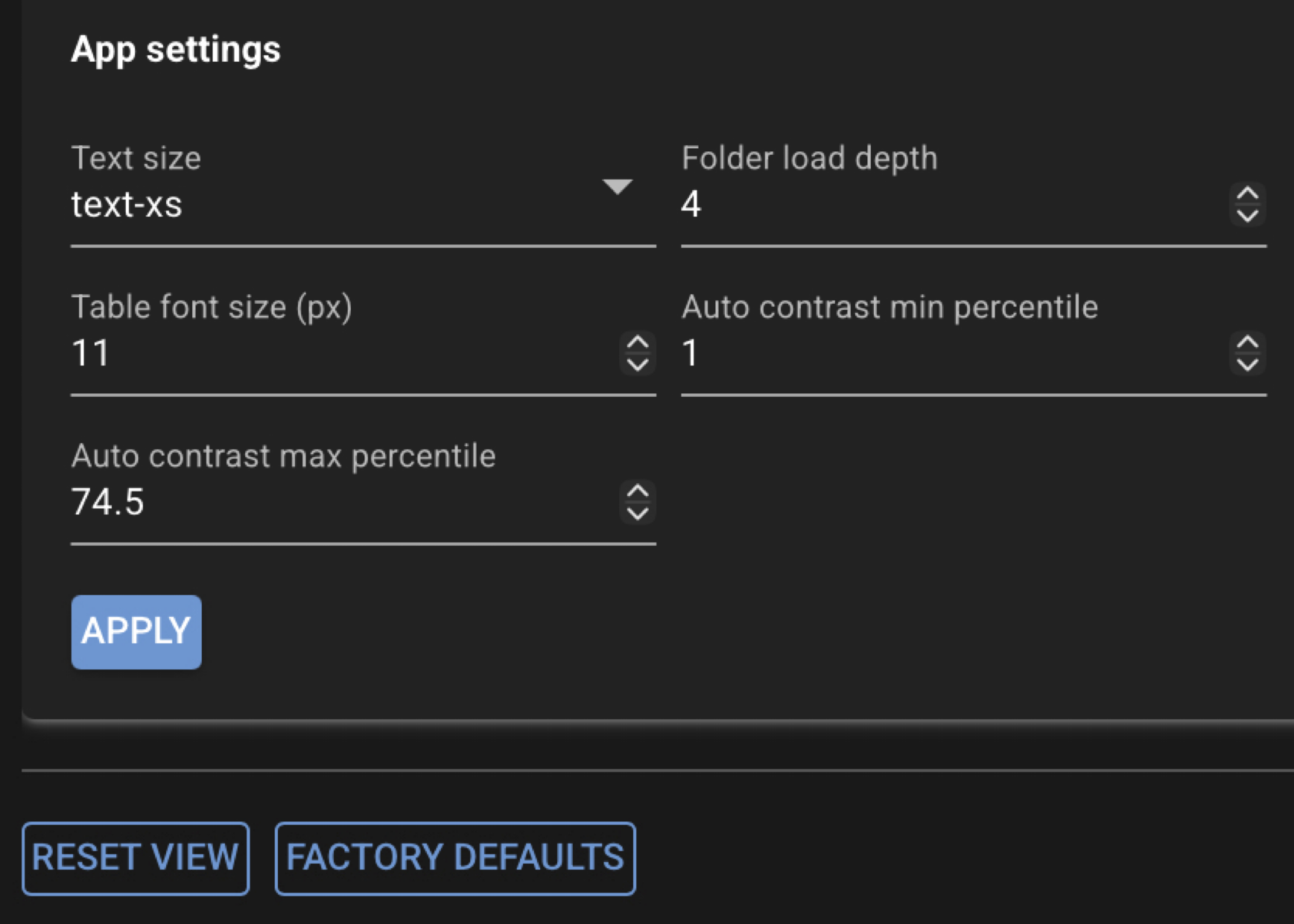
Settings
Edit values in the settings card and click Apply to save. Settings are written to the CloudScope app configuration file on disk.
| Setting | Description |
|---|---|
| Text size | Default Tailwind text size class for NiceGUI widgets across the app (labels, buttons, and general UI text). |
| Folder load depth | Maximum directory depth when loading a folder (must be ≥ 1). Controls how many levels deep CloudScope searches for supported image files during a Load Folder operation. |
| Table font size (px) | Font size in pixels for file-list tree cells and column headers (main workspace file list and left-toolbar File List panel). |
| Auto contrast min percentile | Lower NumPy percentile bound used when you click Auto on the image toolbar and when CloudScope seeds initial display contrast for a channel. Display only — does not affect analysis inputs or saved analysis results. |
| Auto contrast max percentile | Upper NumPy percentile bound for Auto contrast and initial contrast seeding. Display only — does not affect analysis. |
The auto-contrast percentiles define which pixel intensity range is mapped to the visible colormap (for example clipping at the 2nd and 98th percentile of the current image plane). Analysis always uses full-resolution source data, independent of these display settings.
Additional actions
- Reset View — reset Home page splitter layout to the default arrangement (does not change the settings above).
- Factory defaults — restore the editable settings on this panel to factory defaults.
See also
- Using the GUI — image toolbar Auto contrast and file-list appearance
- Saved file formats