GUI: Experiment metadata
Open the left navigation toolbar and click Experimental Metadata (description icon) to edit experiment fields for the currently selected file.
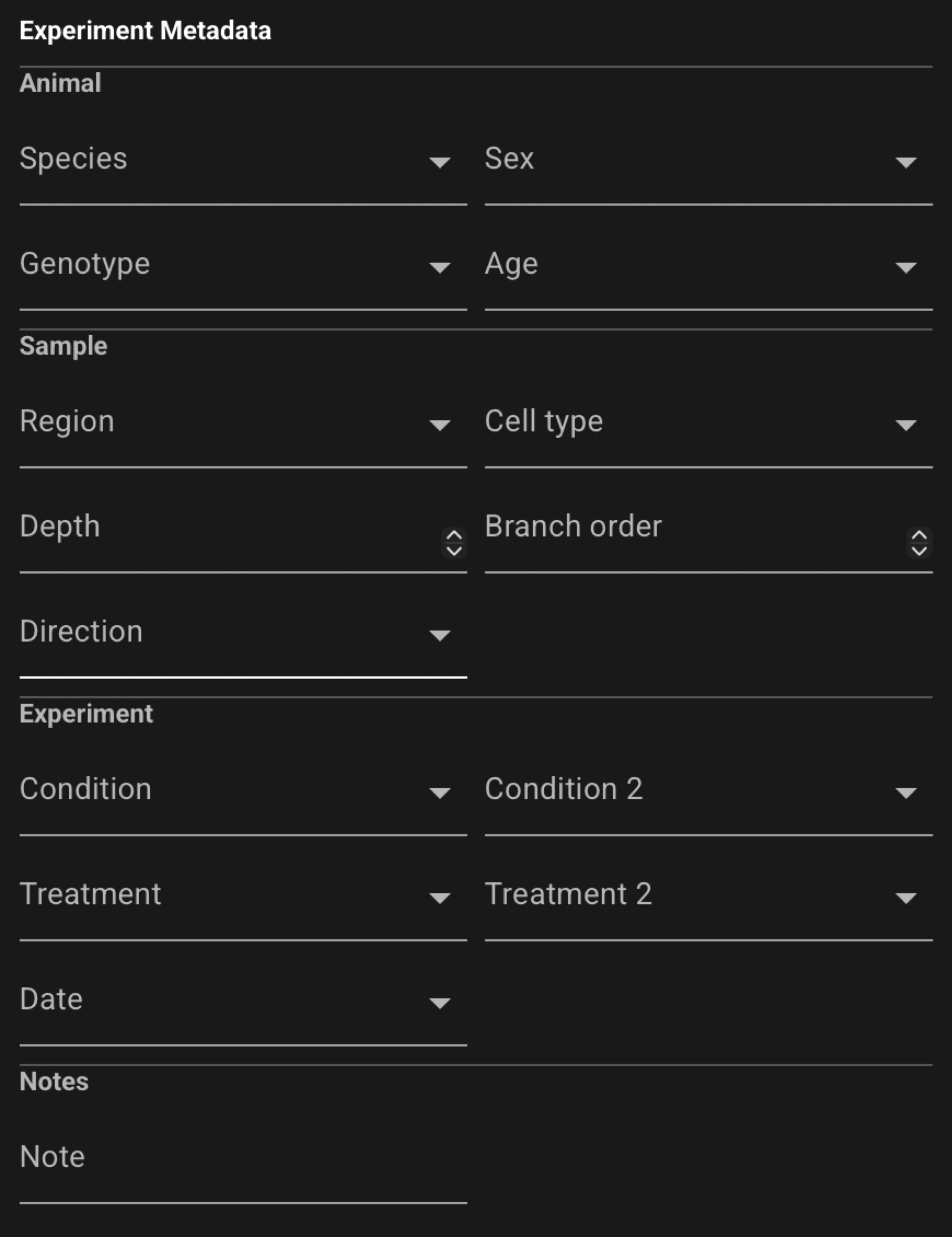
Experimental metadata describes the biological sample, experimental condition, notes, and related fields you associate with an acquisition. Edits update the in-memory file immediately; use Save Selected or Save All in the load/save controls to write changes to disk.
How editing works
- Immediate apply — each field commits as you edit it. There is no separate Apply or Commit button for the form. When you change a value and leave the field (or press Enter), CloudScope applies that field to the selected file right away.
- Preset dropdowns — categorical text fields such as Sex, Genotype, Condition, and similar columns show a dropdown of values already used by other files in the currently loaded folder. Pick an existing value for consistency across a dataset.
- Custom values — you can type a new value instead of choosing from the dropdown. New text is accepted like any other field value.
Typical workflow
- Select a file in the file list.
- Open Experimental Metadata on the left toolbar.
- Edit fields in the form (changes apply per field as you commit each one).
- Save from the load/save controls when the file shows unsaved changes.
If no file is selected, the panel prompts you to select a file first.
Field reference
Experimental metadata fields are defined in the CloudScope schema. Common fields include Species, Sex, Genotype, Region, Condition, and free-text Note. The exact set of fields may evolve between releases.
For the full field list and schema detail, see AcqImage Metadata.