GUI: Image header
Open the left navigation toolbar and click Image Header (biotech icon) to view header metadata read from the source file and to set physical units and axis labels used for measurements and plots.
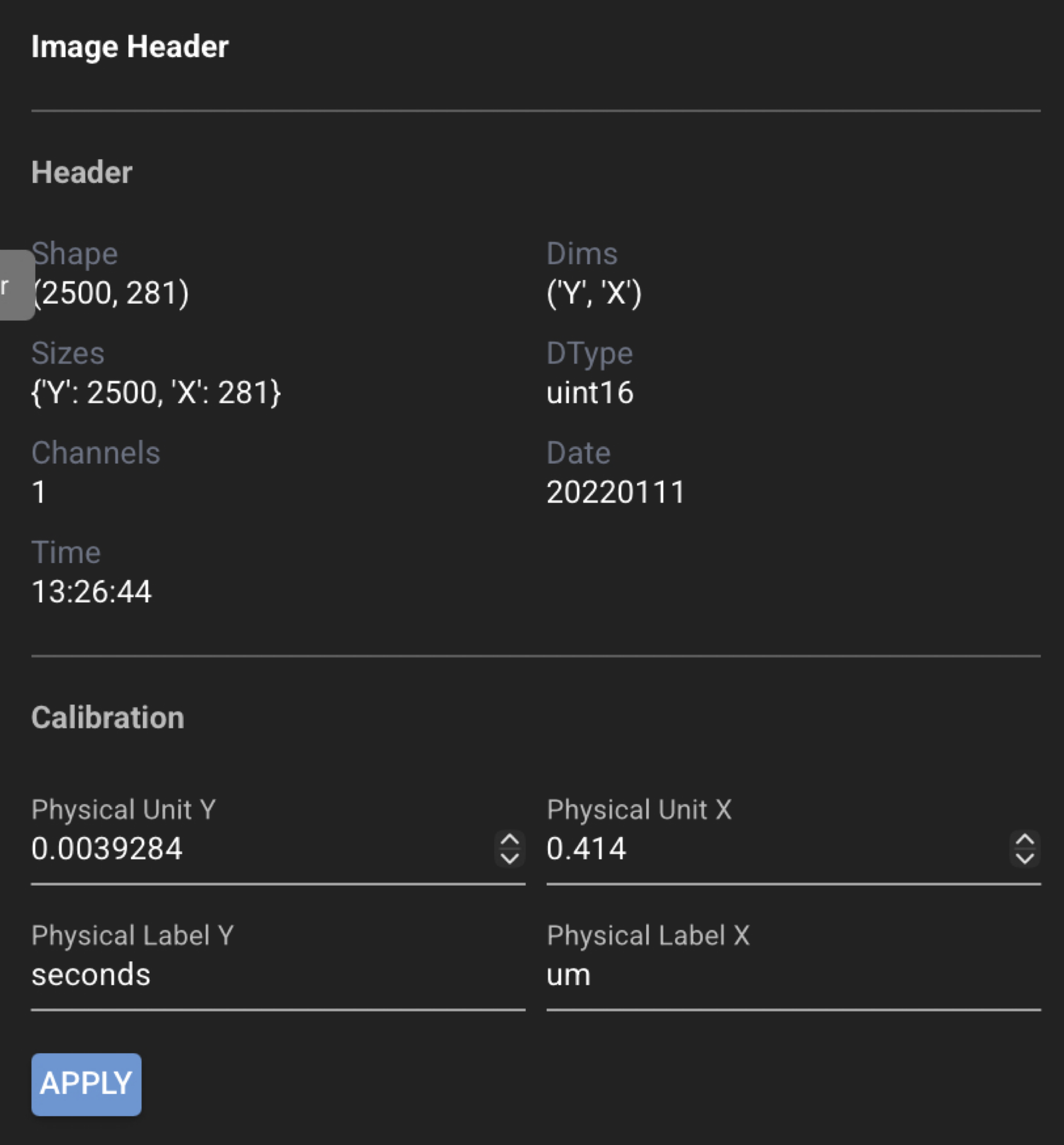
Image header metadata comes from the file format when available (for example Olympus .oir or
Zeiss .czi).
Read-only vs editable fields
Most header fields are view-only. They reflect what CloudScope read from the file (dimensions, format-specific metadata, and related loader output). You cannot edit those values in the GUI.
Editable calibration fields are limited to Y/X physical unit size and physical unit
labels. Use these when a file lacks embedded scaling — for example a plain .tif with no
physical units — so analyses and plots can still report measurements in real units. After editing,
click Apply on the header card, then Save Selected or Save All in the load/save controls.
Physical units affect ROI measurements, plot axis scaling, and analysis outputs that report values in real units. They do not change the underlying pixel data.
Typical workflow
- Select a file in the file list.
- Open Image Header on the left toolbar.
- Review read-only header fields.
- If needed, adjust physical unit and label fields for the Y and X axes.
- Click Apply on the header card when you changed calibration fields.
- Save from the load/save controls when the file shows unsaved changes.
Field reference
Header fields are defined in the CloudScope schema. For the full field list and schema detail, see AcqImage Metadata.