Using the GUI
CloudScope provides a desktop and browser GUI for loading raw image files, visualizing image data, selecting ROIs, and running supported analysis workflows. Current quantitative analysis workflows are designed for line scan kymographs.
CloudScope is designed around a simple workflow: load data, visualize what you need, define or select ROIs, run analysis, and review or export results. The desktop app and browser app share the same interface.
CloudScope uses image pyramids for fast visualization at the zoom level on screen, while analysis uses full-resolution source data. Image pixels and analysis load lazily when you select a file or analysis, and can be unloaded from the file-list context menu. Together, this lets you browse folders with many hundreds of files without loading everything into memory at once.
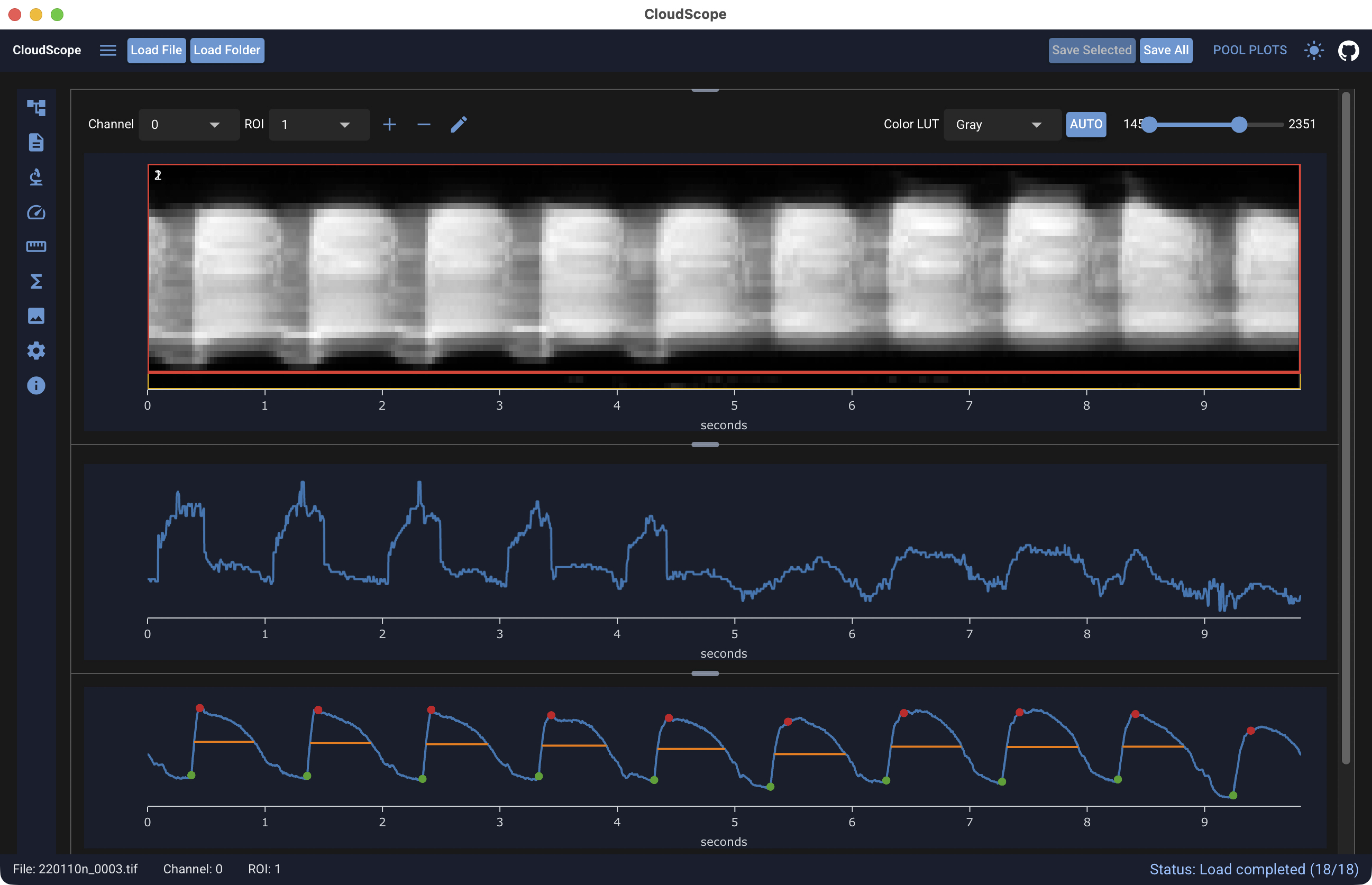
Main areas shown above:
- Left navigation toolbar — icon column that opens side panels (file list, metadata, analyses, and settings).
- Top header — CloudScope title, history menu (), load/save controls, and theme/GitHub links.
- File list — collapsible acquisition tree at the top of the main workspace (full column set). The left-toolbar File List panel shows the same loaded data in a compact layout.
- Primary image viewer — kymograph display with ROI overlays; image toolbar sits above it.
- Analysis plot — velocity or diameter trace for the current selection.
- Peak detection plot — df/f0, derivative, and peak markers when peak detection applies.
- Pool plots — optional right-side panel (Pool plots) for folder-wide velocity and peak comparisons; open with Pool Plots in the top header.
Getting started with sample data
The fastest way to explore CloudScope is to load example data from the
cloudscope-data
repository. Open the history menu () in the load/save controls and choose:
| Menu item | Sample content |
|---|---|
| Load Velocity Sample Data | OIR kymograph data for velocity analysis demos |
| Load Diameter Sample Data | TIFF kymograph data for diameter analysis demos |
CloudScope downloads the archive on first use, verifies it, and caches it locally. The loaded folder appears in the file list like any other folder load.
Sample data is the recommended first step when trying the application, confirming a fresh installation, or working through the end-user recipes.
Top header and load/save controls
The top header spans the full width of the application. It shows the CloudScope title on the left, load and save controls in the center, and theme / GitHub links on the right.
Load and save behavior differs slightly between the desktop app and the browser app:

- Load File — open one supported image file from your computer (native file picker).
- Load Folder — open a folder and load supported image files within it (native file picker).
- Upload File is not shown; the desktop app reads files directly from disk.

- Load File and Load Folder are disabled. Browsers cannot open arbitrary local paths the way the desktop app can. Hover the disabled buttons to see: Local file picker is available in the desktop app.
- Upload File — upload one supported image file from your computer. You can also drop a file onto the upload control.
History menu ()
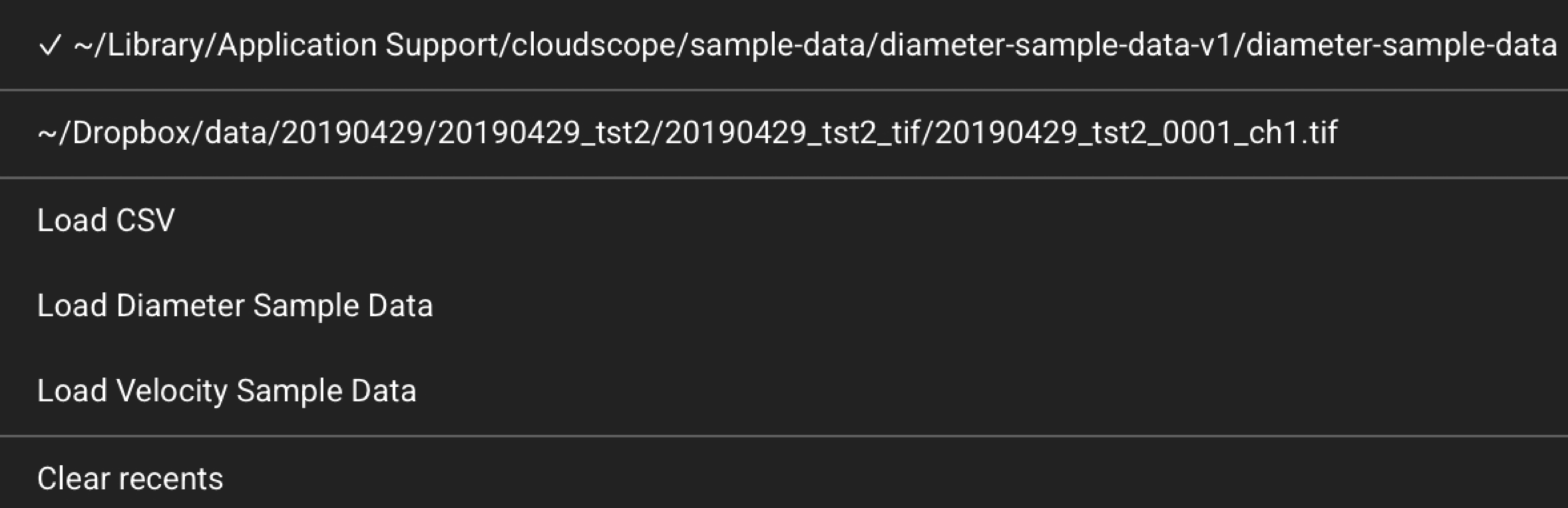
Click the history menu button () to the left of the load buttons. Menu contents appear in this order:
- Recent folders — one entry per recently opened folder. A check mark (✓) marks the path that matches the current session's last loaded folder. Click an entry to reload that folder.
- Recent files — one entry per recently opened file (including CSV paths opened as files). A check mark marks the current last-loaded file when applicable.
- Load CSV — open a CSV file from disk (desktop) or from upload context (web). Used when working with tabular outputs outside the normal image load flow, and to load a randomized file manifest that samples a subset of a large dataset. See Generating a randomized file subset and Blinded analysis mode.
- Load Diameter Sample Data — download and open the diameter-analysis sample dataset from
cloudscope-data. - Load Velocity Sample Data — download and open the velocity-analysis sample dataset from
cloudscope-data. - Clear recents — remove all entries from the recent folders and recent files lists (shown when at least one recent path exists).
Save buttons
On the right side of the load/save row:
- Save Selected — save the currently selected acquisition file when it has unsaved changes. Disabled when no file is selected or the selection has no pending changes.
- Save All — save every loaded file that has unsaved changes. Always available when files are loaded.
Saved files include a JSON state file and analysis CSV files next to each source image. See Saved file formats for a full description of what is written for metadata, ROIs, and each analysis type.
Left navigation toolbar

The left navigation toolbar is a column of icons along the left edge of the window. Each icon opens a panel in the left splitter area. Click an icon to open its panel; click the same icon again to close the panel and return to the icon-only toolbar.
| Tooltip | What it does |
|---|---|
| File List | Compact acquisition tree for loaded files, channels, ROIs, and analyses. See File list and acquisition tree below. |
| Experimental Metadata | Edit experiment metadata fields for the selected file. See GUI: Experiment metadata. |
| Image Header | View header fields from the file format and set physical units and axis labels. See GUI: Image header. |
| Velocity | Configure and run in vivo blood-flow velocity analysis. See Analysis panels. |
| Diameter | Configure and run vessel diameter analysis. See Analysis panels. |
| Peak Detect | Configure and run peak detection (for example GCaMP reporter fluorescence). See Analysis panels. |
| Reference Image | View the reference or overview image and related metadata when the file format provides one (for example Olympus .oir or Zeiss .czi line scan kymographs). When available, this panel can also show the scan path for the line scan. Use Save Reference As Tif to export the reference image (see Saved file formats). |
| Config | Application settings (text size, folder load depth, table font, auto-contrast percentiles, and blinded analysis mode). See GUI: App config and Blinded analysis mode. |
| App info | Version and build metadata (when available from a packaged or deployed build), log preview, and Open Logs for troubleshooting. |
Pool plots
Click Pool Plots in the top header to open the right-side pool plots panel. Pool plots aggregate in vivo velocity and peak-detection results across the entire loaded folder and refresh automatically when you load files, run analyses, or edit metadata or ROIs.
See Pool plots for an overview, export actions, and example plots. Detailed control documentation is coming soon.
File list and acquisition tree
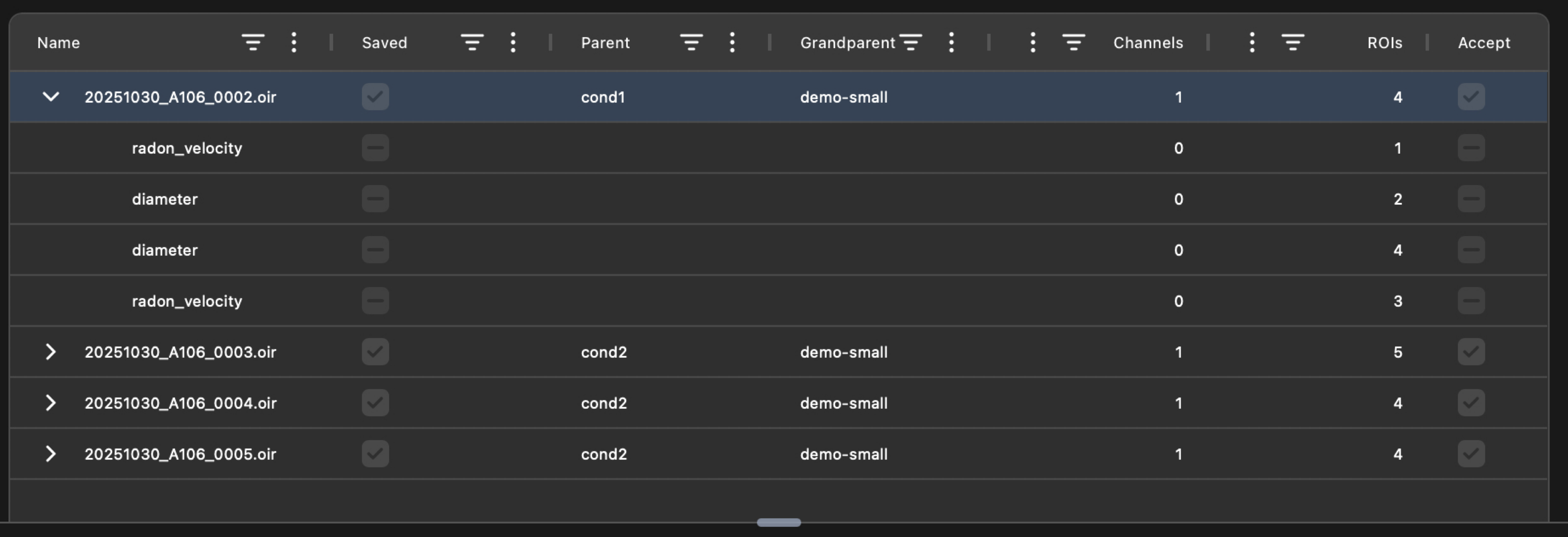
The File list at the top of the main workspace shows the full acquisition tree with the default column set. Open the File List tab on the left toolbar for the same loaded data in a compact panel (fewer columns visible by default; additional columns are available from the context menu).
Selecting an item updates the rest of the interface. Linked views stay synchronized through CloudScope's event system, so the image viewer, analysis panels, and result views follow the current selection.
Typical use:
- Load one or more files.
- Select the file or channel you want to visualize.
- Select an ROI or analysis result when available.
- Use the analysis panels to run or update measurements.
File list context menu
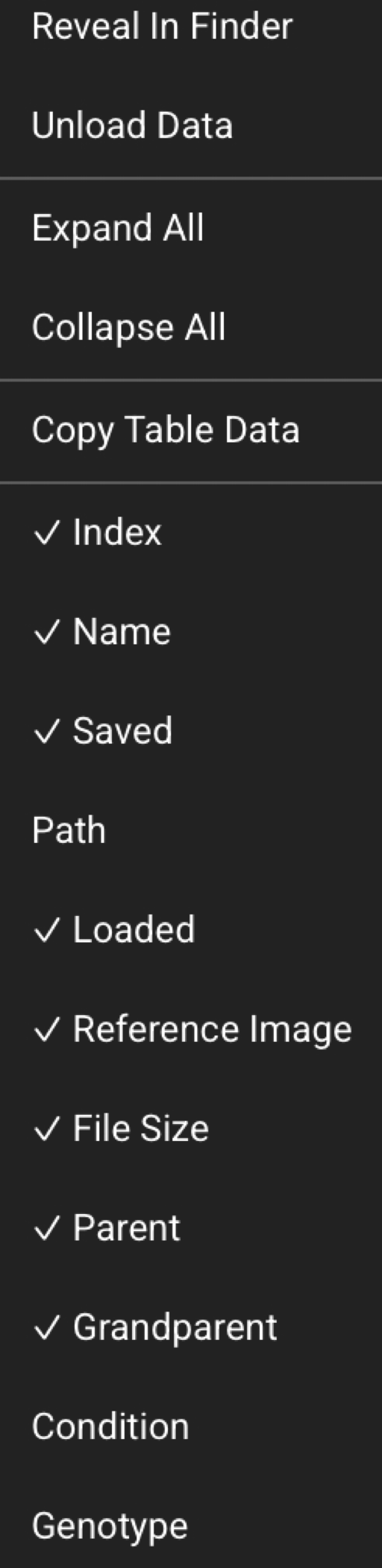
Right-click the file list tree to open the context menu:
- Reveal In Finder — open the selected file's folder in the system file manager (the menu label follows macOS wording in the app today).
- Save As Tif... — export the selected acquisition image pixels as a TIFF file (native save dialog on desktop; browser download in the web app). This writes a new file; it does not replace the source. See Saved file formats.
- Unload Data — free lazy-loaded image pixels and analysis for the selected file while keeping the file entry in the list.
- Expand All / Collapse All — expand or collapse all tree nodes.
- Copy Table Data — copy the visible tree rows to the clipboard.
- Column toggles (for example ✓ Name, Loaded, Saved, Dims) — show or hide file-list columns. Hidden schema columns remain available from this menu.
Main image viewer
The primary image viewer displays the selected acquisition image, channel, and ROI overlays. CloudScope uses image pyramids for fast visualization so the GUI can show only the resolution needed for the current zoom level. Analysis still uses full-resolution source data.
Image toolbar

The image toolbar sits above the primary image viewer.
Channel and ROI
- Channel — select the active image channel.
- ROI — select the active region of interest.
- Add (+) — add a new ROI.
- Delete (−) — delete the selected ROI.
- Edit — enter ROI edit mode in the image viewer.
- Full width / Full height — resize the ROI to span the full image width or height.
- OK / Cancel — submit or cancel an ROI edit.
Contrast
- Color LUT — colormap for the primary image display.
- Auto — set display contrast from percentile clipping on the current plane (uses the auto-contrast percentiles in GUI: App config).
- Min/max range slider — manual display window; numeric labels show the current min and max values at each end of the slider.
Use this toolbar to adjust what is visible without changing the underlying acquisition data or analysis results.
Image context menu
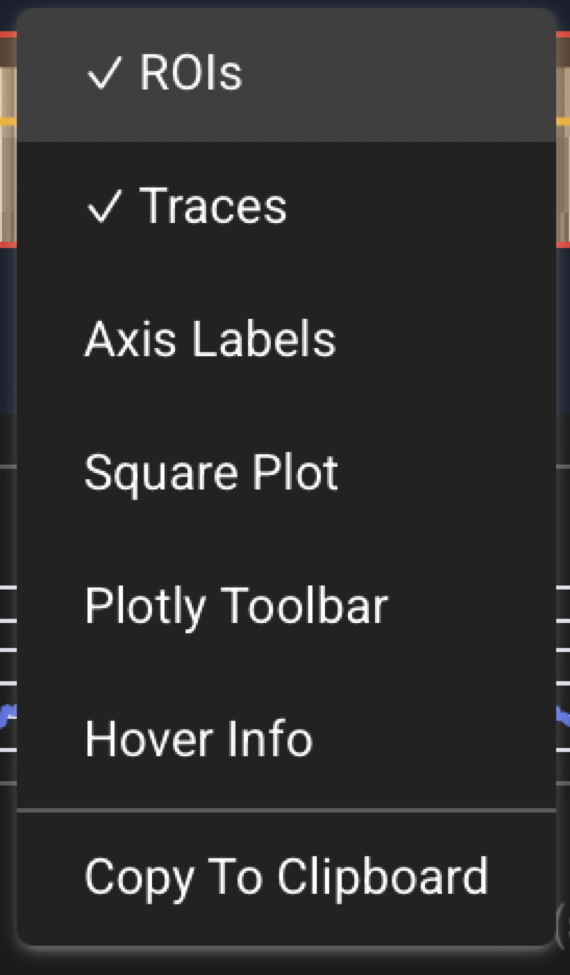
Right-click the primary image viewer to open the context menu:
- ROIs — show or hide ROI rectangle overlays on the image.
- ROI Labels — show or hide ROI labels (disabled while ROIs are hidden).
- Traces — show or hide analysis trace overlays on the image.
- X Axis Labels / Y Axis Labels — show or hide axis tick labels.
- Square Plot — toggle a square aspect ratio for the plot area.
- Plotly Toolbar — show or hide the Plotly mode bar.
- Hover Info — show or hide hover tooltips on the plot.
- Copy To Clipboard — copy the displayed plot image to the clipboard.
These controls affect how the image is displayed. They do not change the original data.
Analysis panels
Open an analysis from the left navigation toolbar. Step-by-step workflows, screenshots, and saved-file details live on the dedicated recipe pages:
| Left toolbar | Recipe |
|---|---|
| Velocity | In vivo velocity analysis — Radon-transform blood-flow velocity; velocity event analysis is in the same panel |
| Diameter | Diameter analysis — vessel diameter from line scan kymographs |
| Peak Detect | Peak detection — functional fluorescence reporters (like GCaMP) |
Derived analyses that require velocity results first:
- Velocity event analysis
- Heart rate analysis (notebook today)